Entradas

Mostrando las entradas etiquetadas como servlet

05. Resource bundles (i18n)
Imagen
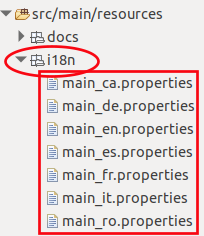
 1. Introduction There are several ways to use resource bundles. By now, let's use  java  instead of xml ( <%@ taglib prefix="fmt" uri="http://java.sun.com/jsp/jstl/fmt" % > ) 1. First lay the resource files ( main _ language .properties ) in the folder  src/main/resources/i18n 2. Create a jsp file 3. Add a new page directive with the includes ( Locale y ResourceBundle ) 4. Get the locale from the request and the resource bundle from the relative path " i18n/main " 5. Assign the localized value using   <%=bundle.getString("key") %> The source code is <%@ page language = "java" contentType = "text/html; charset=UTF-8" pageEncoding = "UTF-8" %> <%@ page import = " java.io.* , java . util . Locale , java . util . ResourceBundle " %> <!DOCTYPE html> <html> <head> <meta http-equiv= "Content-Type" content= "text/html;...
03. Servlets, Filters and Listeners

 1. Introduction This page is based on Baeldung Since java servlet 3.0, no "web.xml" file is needed. this file has been replaced by annotations 2. Servlets The @ WebServlet annotation is used: @WebServlet ( urlPatterns = "/trim" , name = "trimServlet" ) public class TrimServlet extends HttpServlet { public void doGet ( HttpServletRequest request , HttpServletResponse response ) throws IOException { String inputString = request . getParameter ( "input" ). trim (); PrintWriter out = response . getWriter (); out . println ( inputString ); } } 3. Filters Whose mission is to intercept requests or responses. In this case, intercepts the call to the previous servlet and check if the parameter "input" is correct. The @ WebFilter annotation is used @WebFilter ( urlPatterns = "/trim" ) public class EmptyParamFilter implements Filter { @Override public vo...

01. First Project (Eclipse + Tomcat 10 + Java 17)

Imagen
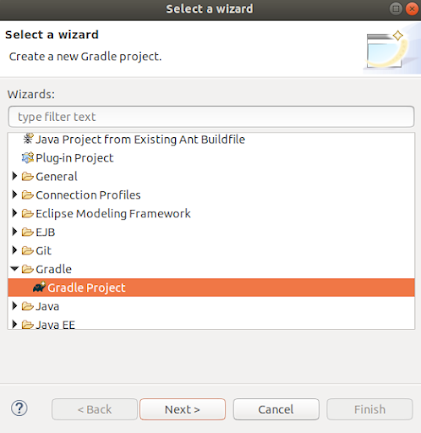
This post has been inspired by  Nam Ha Minh . 1. Create a Gradle project   From the top left menu select:  File - New -Other -Gradle -Gradle Project Give a project name (JSP-02 for instance)  Click on "Configure Workspace Settings" Verify versions of Java ( 17 ) and gradle ( 7.4 )  are selected Click finish. Right-click on the created project and select Delete but DO NOT CHECK to delete project contents Now go to the project folder and delete all the files except the folder "lib" Move the content of the lib folder to the project folder and delete the "lib" folder Import the gradle project again to eclipse File - Import -Gradle -Existing Gradle Project Select the project to import ( JSP-02 ) Accept all the default options and click Finish The project has been imported Now you should verify that the java 17 is being used . So right-click on the project and select Build Path - Configure build Path and verify java version 2. Configure the file build.gradle Th...